 By Admin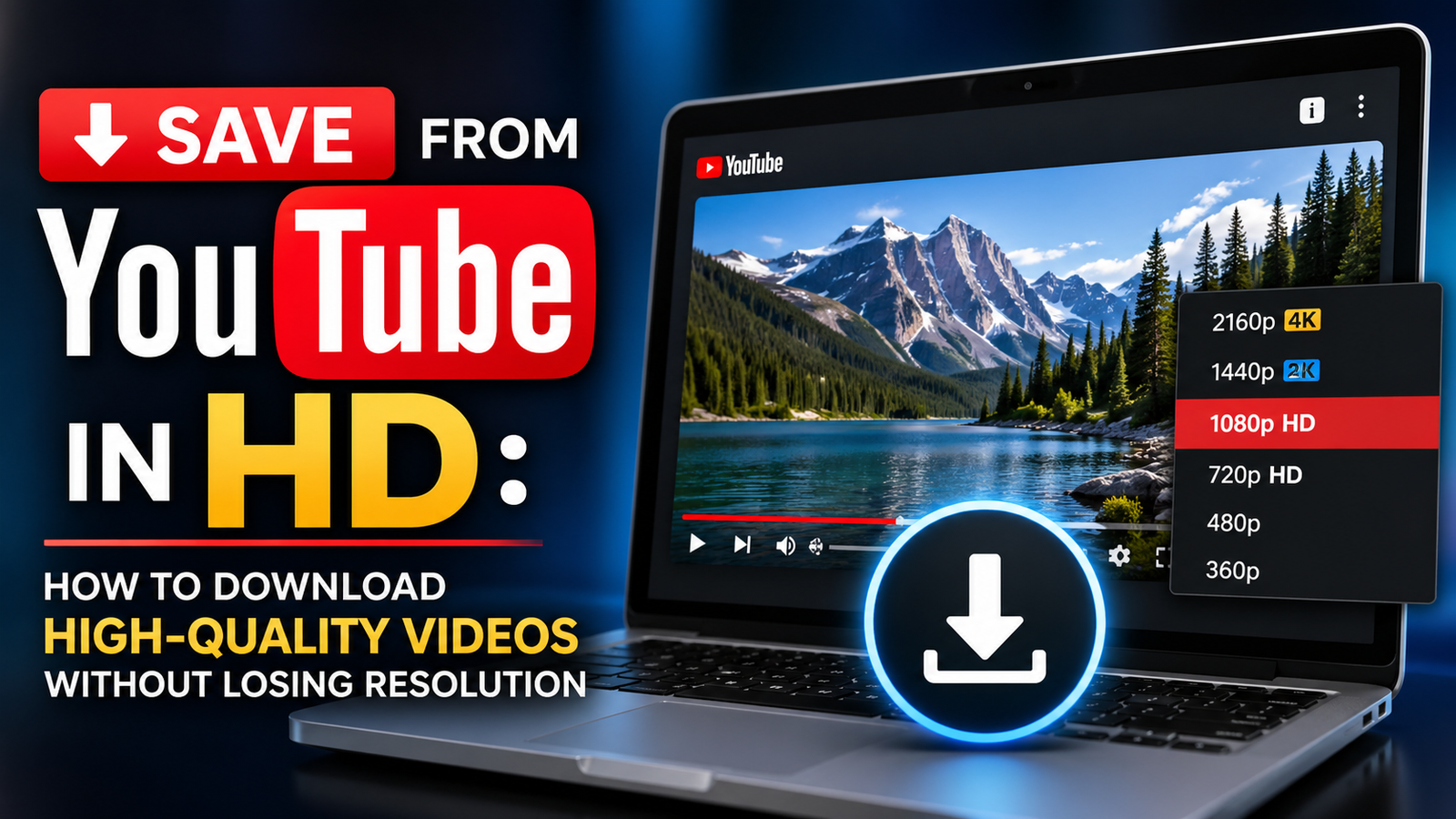
Resolution determines how sharp and detailed a video appears on your screen, and it becomes particularly noticeable on larger displays or when viewing content that was originally shot and uploaded in high definition. Downloading a video at a lower resolution than the original creates a permanent quality loss that cannot be reversed once the file is saved. A 480p download of a video originally available in 1080p will always look softer and less detailed than one downloaded at its native quality, regardless of which device or media player you use to watch it.
When you want to save from youtube hd content properly, selecting the correct resolution at the time of download is the only way to ensure you get the best possible version of the video. Most modern smartphones, tablets, and computer monitors support at least 1080p resolution, making that the practical minimum worth choosing for any video you intend to keep long-term. Videos meant for larger screens or high-resolution displays benefit even more from downloading at the highest available quality before the original is potentially modified or removed from the platform.
Understanding HD, Full HD, and Beyond
Video resolution terminology can be confusing for users who are not deeply familiar with media specifications. HD typically refers to 720p, which delivers noticeably better quality than standard definition options but falls short of the sharpness most modern screens can display. Full HD at 1080p represents the current sweet spot for most users, offering excellent visual quality in files that remain manageable in size. Above that, 1440p and 4K resolutions deliver stunning detail but produce significantly larger files that require more storage and take longer to download.
Not every YouTube video is available in every resolution. Creators upload at whatever quality their equipment and production process supports, and YouTube only offers download options up to the resolution of the original upload. Attempting to download at 1080p when the original was only uploaded at 480p will not improve the video’s quality. The only way to get a truly HD download is to start with a video that was originally recorded and uploaded in HD, at which point the downloading tool can provide access to the full quality version that exists on the platform.
Balancing Quality and File Size
High definition video files are substantially larger than their standard definition counterparts, and this size difference has real practical implications for storage and device management. A typical five-minute video at 1080p may occupy anywhere from 150 to 300 megabytes depending on the content complexity and encoding settings used. At 4K, the same video could easily exceed a gigabyte. For users with limited device storage, downloading everything at maximum quality is simply not feasible, and making deliberate decisions about which videos warrant HD downloads versus lower quality saves is an important habit.
External storage provides a practical solution for users who regularly download videos and find their device filling up. USB drives, external hard drives, and memory cards offer affordable additional storage for video collections. Cloud storage services can also store video files, though uploading and accessing large video files through cloud storage requires a reliable internet connection, which somewhat defeats the purpose of downloading for offline access. Local external storage remains the most practical option for maintaining a growing library of HD videos without compromising your primary device’s available space.
Verifying HD Quality After Downloading
After downloading a video in HD, it is worth taking a moment to verify that the file actually matches the quality you selected. Some downloading tools occasionally deliver lower quality files despite showing HD options in their interface. Right-clicking the downloaded file and checking its properties will show you the file size, which gives a rough indication of quality. Larger file sizes generally indicate higher resolution content, though this is not a precise verification method since encoding efficiency also affects file size.
The most reliable way to confirm video quality is to open the file in a media player that displays resolution information. VLC media player, for example, shows detailed codec and resolution information in its media information window. Confirming that the downloaded file is actually 1080p or 720p as you intended takes only a moment and prevents the disappointment of discovering later that a video you planned to watch on a large screen is actually much lower resolution than expected. Building this verification step into your download workflow is a small time investment that consistently pays off.